User guide
Make your Dock feel like yours.
Make the most of Dockvia: pin apps and files, browse folders, switch windows and access Windows essentials.
Getting started
On first launch, Dockvia starts in Windows mode. Open its tray menu and switch to the Dock. Use the same menu to return to the Windows taskbar or exit.
Apps, files and folders
Drag an app, file or folder to the Dock to pin it. Persistent pins keep frequently used items close, alongside running applications. File and folder pins follow supported rename and move operations.
Browse with Folder Stacks
Open a pinned folder's stack to browse its contents. Choose an item to open it, without navigating through multiple Explorer windows.
Move between windows
Open an app's window previews to find and switch to a window. Live Peek helps you identify it; closing is available for supported previews.
Actions at your fingertips
Right-click an app for its available actions. Supported apps can provide browser tasks and recent or frequent items. Available actions vary by application.
Drag, drop and keep moving
Reorder pins by dragging. Drop a file onto a compatible app to open it. When space is limited, file and folder groups keep your items within reach.
Windows essentials
Use Dockvia to open Start, Search, Task View and Widgets. The Recycle Bin icon opens Windows Recycle Bin and shows whether it is empty or full. File deletion and emptying remain in Windows.
Appearance and size
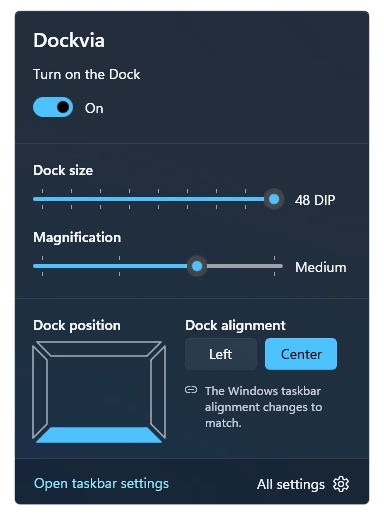
Adjust the Dock size and magnification. Dockvia follows your Windows light or dark theme and taskbar alignment.
Dock position
Dockvia follows your Windows taskbar position. Top, left and right edges are available on supported Windows configurations; earlier versions use the bottom edge.
Start with Windows
Startup is optional and off by default. Enable it in Dockvia settings to launch with Windows; Dockvia remembers your chosen mode.
49 app languages
Follow your Windows display language or choose one of 49 languages in Dockvia settings. Website languages are separate.