Find your flow
Put your everyday apps and folders within easy reach.
Your apps, files and open windows. All within reach.
Pin your favorites, browse folders and switch between windows in one fluid workspace.
See Dockvia in action
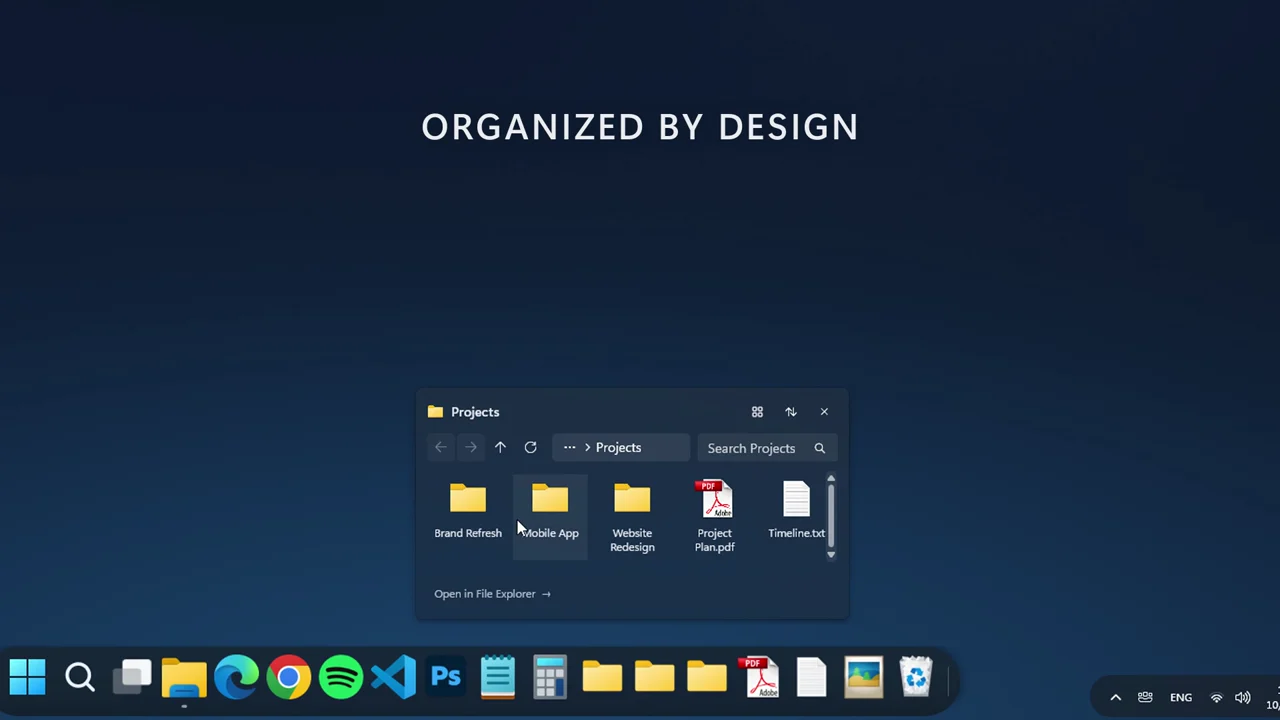

A BETTER EVERYDAY DESKTOP
Keep the apps and folders you use every day close at hand, without losing the familiar Windows experience.
Put your everyday apps and folders within easy reach.
Keep your desktop essentials together in one clear, organized Dock.
Enjoy a modern Dock designed to work with familiar Windows features.
Dockvia in action
Hover, tap or use the arrow keys to explore.
Open your apps, access folders and reach Windows essentials from one Dock.

Interactive demonstration using real Dockvia app icons.
SMALL DETAILS. BIG DIFFERENCE.
Launch apps, pin files, browse folders and move between open windows with a Dock designed for your everyday Windows experience.
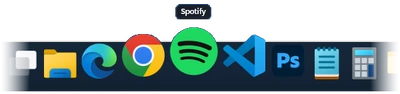
Smooth icon magnification responds to your pointer, bringing the apps you need into focus. Adjust the Dock size and magnification to suit your desktop.
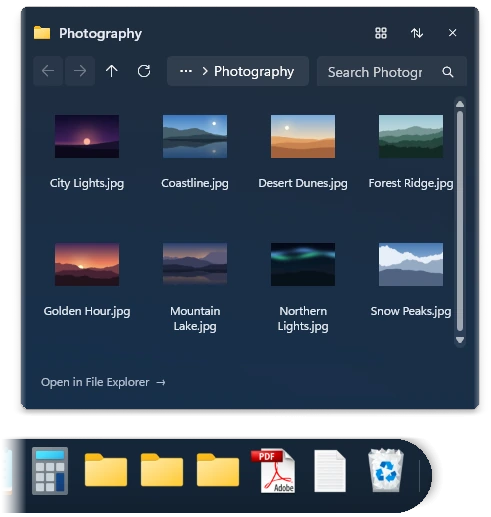
Pin your folders to Dockvia and browse their contents directly from the Dock. Find and open the files you need without navigating through multiple Explorer windows.
Explore Folder Stacks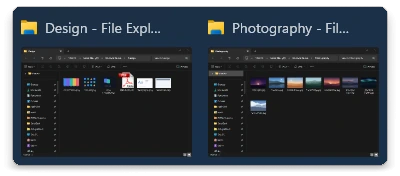
Preview open windows, switch between them and use Live Peek to identify the one you need. Close windows directly from supported previews.
Explore Window PreviewsDrag apps to your Dock and keep your favorites within easy reach. Dockvia brings pinned and running applications together in one familiar place.
Explore App, File & Folder PinningRight-click supported apps to access available actions, browser tasks and recent or frequent items. The options adapt to what each application supports.
Adjust the Dock size and icon magnification to match your workspace. Dockvia follows your Windows light or dark theme and taskbar alignment.
MADE WITH WINDOWS IN MIND
Keep familiar Windows tools within reach. Dockvia works with Start, Search, Task View, Widgets and File Explorer.
Open the Windows Start menu or Search directly from Dockvia.
Switch between tasks with Task View and open Windows Widgets from the same workspace.
Open the native Windows Recycle Bin and see whether it is empty or full at a glance.
SEE THE DETAILS
Explore Dockvia on Windows 11, from fluid icon magnification to Folder Stacks, window previews and quick settings.

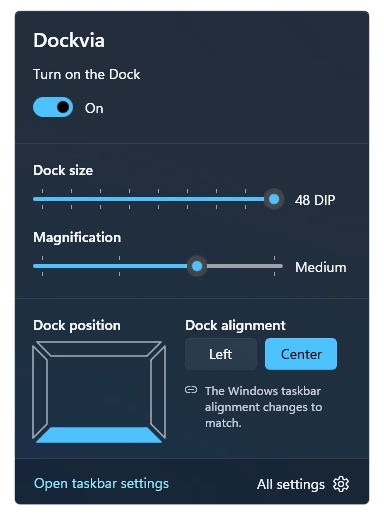
Fine-tune Dock size and magnification from Quick Settings, or open the full settings for more options.
Dockvia supports 49 app languages. Follow your Windows display language or choose your preferred language in settings. Website languages are managed separately.
Dockvia follows your Windows taskbar position. Top, left and right edges are available on supported Windows configurations; earlier versions use the bottom edge.
YOUR NEXT DESKTOP EXPERIENCE
Bring your everyday apps, files and folders together in a modern Dock designed for Windows.

Price in USD. Local prices are shown in the Microsoft Store. Try Dockvia free for 15 days before you buy.
Get Dockvia on Microsoft StoreDockvia is a modern desktop Dock for Windows 11. It brings your apps, files, folders and Windows essentials together in one workspace, with fluid icon magnification, Folder Stacks and window previews.
Yes. You can pin files and folders for quick access and browse the contents of pinned folders using Folder Stacks.
Dockvia requires Windows 11 version 24H2 or later and an x64 PC.
Yes. Drag apps, files and folders onto the Dock to pin them. You can also reorder pinned items and drop files onto compatible applications.
Dockvia provides a Dock mode and a Windows taskbar mode. You can switch between them using the Dockvia system tray menu. Returning to Windows mode restores the Windows taskbar.
Dockvia is available through Microsoft Store. You can try it free for 15 days before purchasing.
Dockvia supports 49 app languages. It can follow your Windows display language or use a language selected in Dockvia settings. Website language availability is separate.
Dockvia follows your Windows taskbar position. Top, left and right edges are available on supported Windows configurations. Earlier Windows versions use the bottom edge.