
WINDOW PREVIEWS · LIVE PEEK
Window previews for Windows 11.
The right window. At a glance.
Preview your open windows, find the one you need with Live Peek and switch between tasks from your Dock.

SEE WHAT'S OPEN
Find the window you're looking for.
Move between open windows with a clearer view of what's running. Dockvia shows available window previews so you can identify the one you want before switching.

A more visual way to move through your workspace.
A CLOSER LOOK
See it before you switch.
Live Peek helps you identify the window you need before bringing it into focus.
Move through your open work with greater clarity.
THREE SIMPLE ACTIONS
Preview. Peek. Switch.
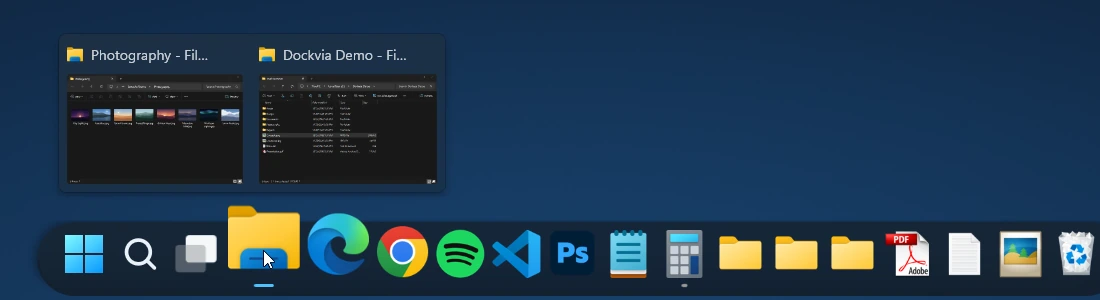
Window previews opened from the File Explorer icon View capture ↗ Preview open windows
Open an application's window previews from Dockvia to see its available windows.
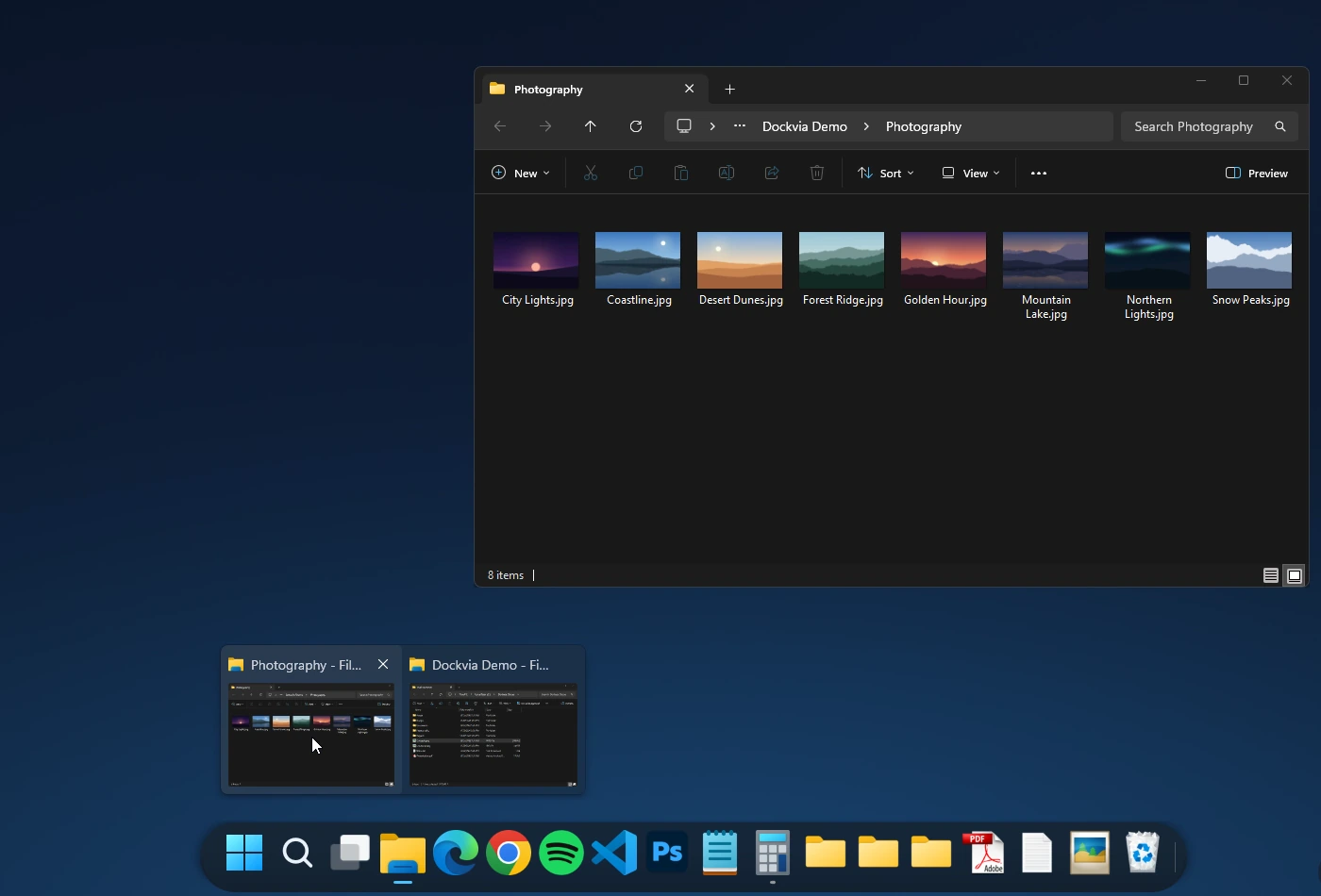
Live Peek on the Photography window View capture ↗ Identify with Live Peek
Use Live Peek to identify the window you want.

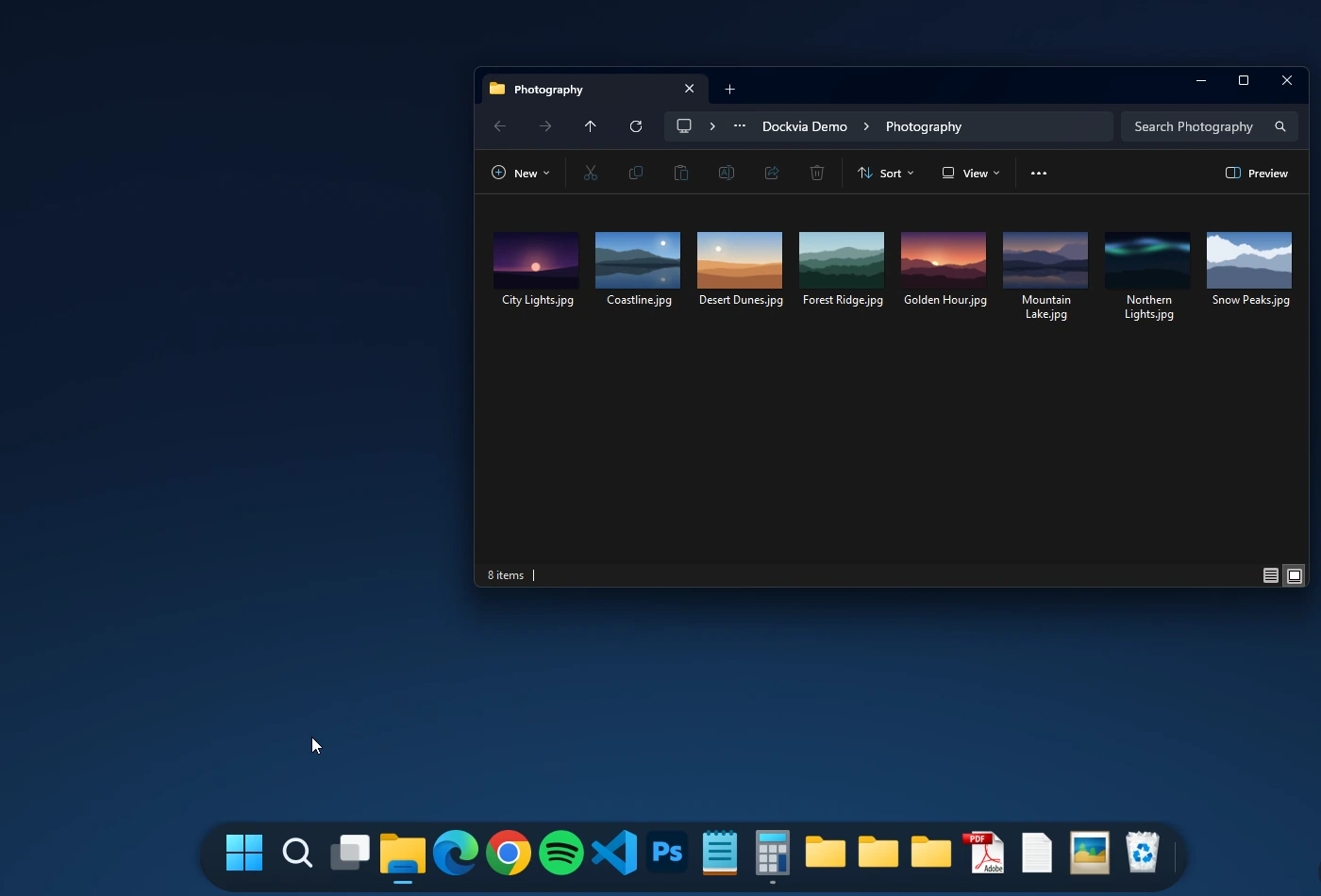
The selected window comes into focus Switch to your window
Select the window you need to bring it into focus.
MORE CONTROL, LESS FRICTION
The window you need. The controls you expect.
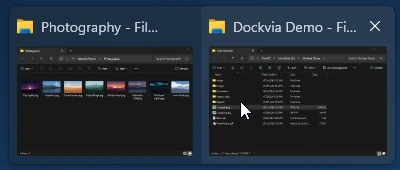
Switch between your open windows and close individual windows from supported previews, without adding unnecessary steps to your workflow.
Close from the preview
Supported window previews include a close action, so you can dismiss a window directly from its preview.
Made to work with Windows
Dockvia brings window previews into a Dock designed around familiar Windows desktop interactions.
A FEW THINGS TO KNOW
Common questions.
What are Window Previews in Dockvia?
Window Previews let you see available windows for an application and choose the one you want to open from your Dock.
What is Live Peek?
Live Peek helps you identify a window before switching to it.
Can I switch between open windows?
Yes. You can select an available window from its Dockvia preview to switch to it.
Can I close windows from their previews?
Closing is available for supported window previews. Availability may vary by application or window.
What Windows version does Dockvia require?
Dockvia requires Windows 11 version 24H2 or later and an x64 PC.
STAY IN YOUR FLOW
Every window, within reach.
Discover a more fluid way to move between open windows with Dockvia for Windows 11.
 Get Dockvia on Microsoft Store
Try free for 15 days.
Windows 11 24H2+ · x64
Explore the Dockvia User Guide